---
title: "Enabling Transport Layer Security for Reverse Proxy"
slug: "enabling-transport-layer-security-for-reverse-proxy-1"
tags: ["orchestrator", "TLS", "reverse proxy", "orchestrator 23.12"]
updated: 2026-11-05T16:46:09Z
published: 2026-11-05T16:46:09Z
canonical: "docs.crossworkassurance.cisco.com/enabling-transport-layer-security-for-reverse-proxy-1"
---
> ## Documentation Index
> Fetch the complete documentation index at: https://docs.crossworkassurance.cisco.com/llms.txt
> Use this file to discover all available pages before exploring further.
# Enabling Transport Layer Security for Reverse Proxy
Use the Command Line Interface (CLI) of the Appliance Monitor to enable or disable Transport Layer Security (TLS) 1.0 or 1.1 configuration for reverse proxy.
For command descriptions, see the *[Appliance Monitor Command Reference](/skylight-legacy-documentation/docs/appliance-monitor-command-reference)* for virtual machine or the *[Docker CLI Reference](/skylight-legacy-documentation/docs/docker-cli-reference)* for Docker.
**Note**: This feature is for release 23.12 or later of Skylight orchestrator.
## Preconditions
Before beginning, the following precondition(s) must be met:
- For virtual machines (VM), the Application server must be started before enabling or disabling the TLS configuration.
- For Docker, the Skylight orchestrator services must be running before enabling or disabling the TLS configuration.
## Procedures
**Note**: Only one value can be entered at a time while executing the command.
**To enable TLS version 1 or TLS version 1.1**
1. Access the **Appliance Monitor** for VM or **socli** for Docker.
2. For VM, check Application server. For Docker, Skylight orchestrator Services must be running. a. To enable TLS version 1.0, run the CLI and enter: tls enable value TLSv1 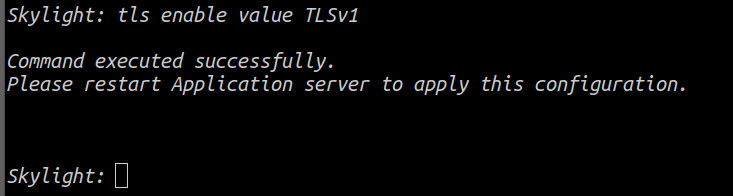 b. To enable TLS version 1.1, run the CLI and enter: tls enable value TLSv1.1 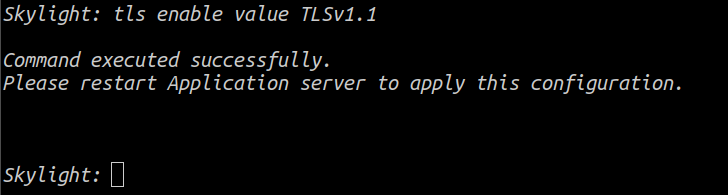
3. Restart the Application server to apply the configuration. When the Application server is **not** running, the following error message will appear: 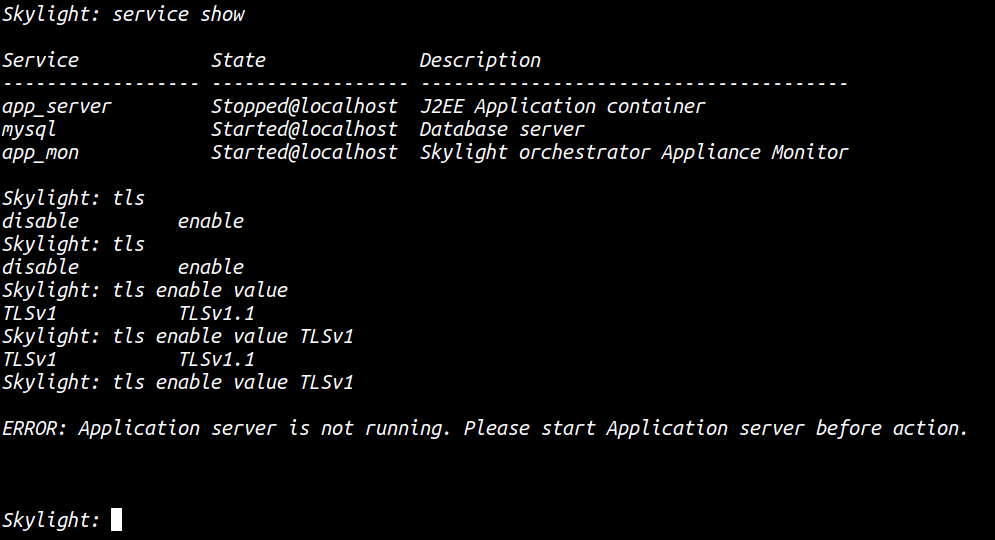
**To disable TLS version 1 or TLS version 1.1**
1. Access the **Appliance Monitor** for VM or **socli** for Docker.
2. For VM, check Application server. For Docker, Skylight orchestrator Services must be running. a. To disable TLS version 1.0, run the CLI and enter: tls disable value TLSv1 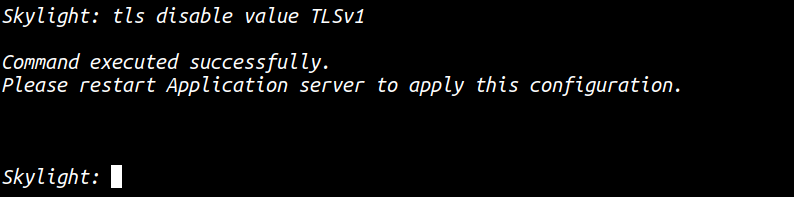 b. To disable TLS version 1.1, run the CLI and enter: tls disable value TLSv1.1 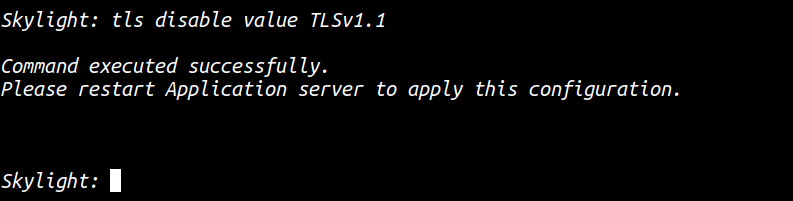
3. Restart the Application server to apply the configuration.
### Limitation
TLS 1.0 and 1.1 were deprecated in Chrome 72 with a planned removal in Chrome 81 (in early 2020). Other browsers are also removing support for TLS 1.0 and 1.1 at this time.
Consequently, you cannot access the UI device using the reverse proxy by Chrome browser.
**Example**:
Both TLS 1.0 and TLS 1.1 will be enabled in order to access UI device through reverse proxy by Chrome browser. An error message will appear: 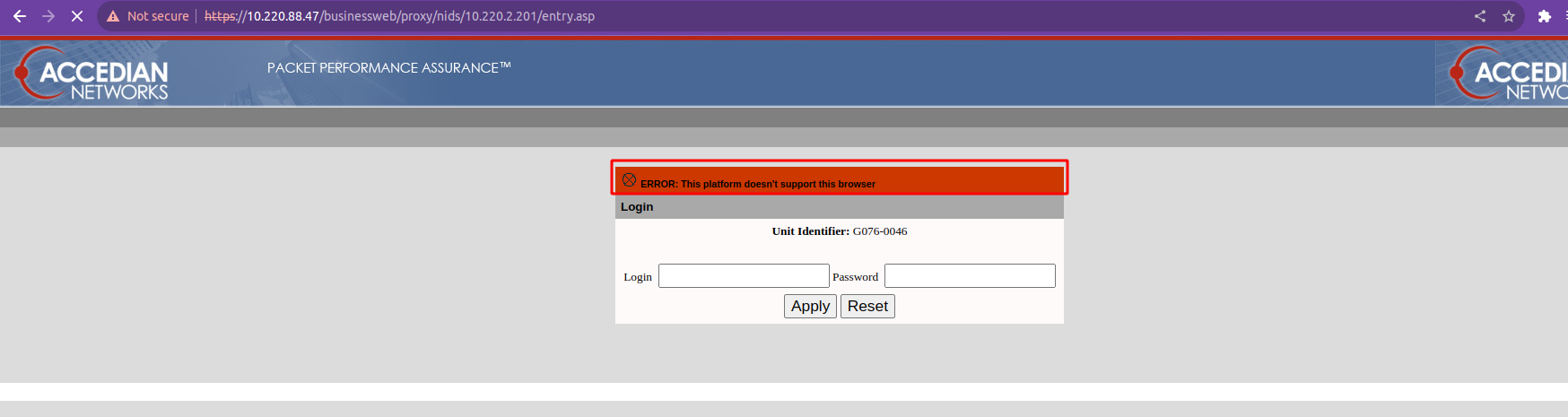
However, you can access UI device through reverse proxy by FireFox browser: 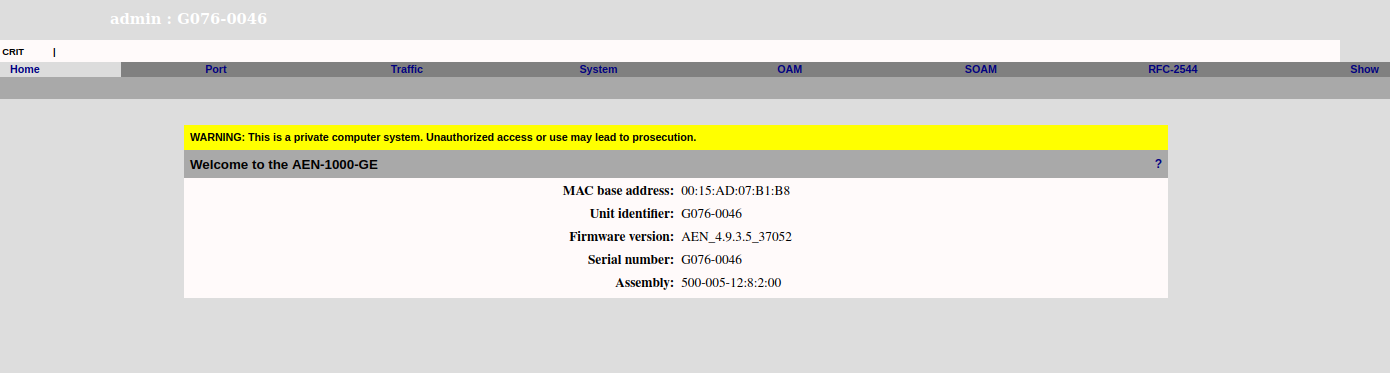
**© 2026 Cisco and/or its affiliates. All rights reserved.** For more information about trademarks, please visit: [Cisco trademarks](https://www.cisco.com/c/en/us/about/legal/trademarks.html)[](https://www.cisco.com/c/en/us/about/legal/trademarks.html) For more information about legal terms, please visit: [Cisco legal terms](https://www.cisco.com/c/en/us/about/legal/terms-conditions.html)